I thought it would be a great experiment to see if I can talk to my database using an LLM. There are plenty of LLM-talks-to-SQL tools, but the point here is tying it into Grafana so dashboards and ad hoc questions live together. That way, if I'm investigating something one-off, I can ask follow-up questions against the data without building yet another report.
At a high level, Grafana stays connected to Postgres as usual, with your existing dashboards. Separately, an LLM (OpenAI for simplicity in this guide, or Ollama/self-hosted if you want to keep everything local) connects to an n8n workflow. That workflow acts as the bridge between chat messages and the database. You then embed the n8n chat UI directly into a Grafana dashboard using a Text panel in HTML mode.
This guide assumes you already run Grafana securely behind a reverse proxy. It is also assuming your n8n instance is deployed securely (HTTPS, sensible access controls). We are focusing on the "LLM chat with Postgres in Grafana" piece only.
1) Create a restricted SQL user for the LLM
First things first: create a separate DB user for LLM queries. This role should be read-only, besides SELECT, it should not have any rights to modify schema or data.
Even good models hallucinate and you do not want accidental DROP, DELETE, or UPDATE if something goes wrong.
Example:
CREATE ROLE llm_reader LOGIN PASSWORD 'STRONGPASSWORD';

GRANT CONNECT ON DATABASE your_db TO llm_reader;
GRANT USAGE ON SCHEMA public TO llm_reader;

GRANT SELECT ON TABLE public.blog_mv TO llm_reader;
GRANT SELECT ON TABLE public.blog_post_mv TO llm_reader;
GRANT SELECT ON TABLE public.blog_country_mv TO llm_reader;

ALTER ROLE llm_reader SET statement_timeout = '5s';
ALTER ROLE llm_reader SET idle_in_transaction_session_timeout = '5s';
That last part is a safety net to protect your database from accidentally expensive queries.
If you want to go further, expose only views/materialized views to the LLM user rather than base tables. It reduces risk (no sensitive columns) and improves performance (pre-aggregated shapes).
2) Build the n8n workflow
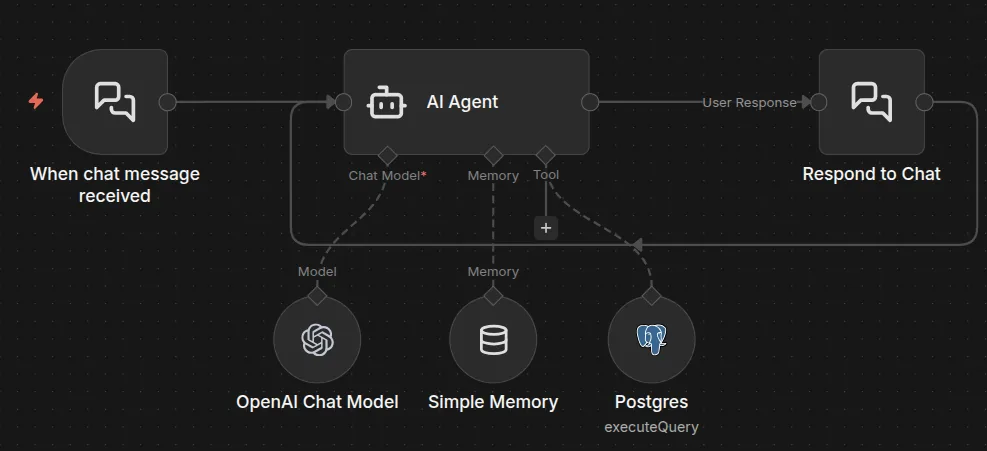
Create a new workflow in n8n and add a Chat Message Trigger node at the start. Enable hosted chat mode (so you get a chat endpoint). Set CORS to allow your Grafana URL and set response mode to Using Response Nodes.
Next, add an AI Agent node. This is your controller, it takes the user's message, decides whether it needs to query the DB, writes SQL, calls the Postgres tool, then summarizes the results.
In the AI Agent:
- Under Source for Prompt (User Message), select the connected Chat Trigger node.
- Under Options, define a system message. This matters a lot, because it is the permanent context applied to every conversation.
A strong system message should do three jobs:
- Enforce rules (no fabrication, read-only SQL)
- Describe your schema and definitions (what schema you use, table names, columns, synonyms)
- Define date handling (interpretation on how "yesterday" and "last 7 days" are bounded)
Here is a good and simple default prompt:
You are AmbientNode’s Data Assistant for ambientnode.uk. Your job is to answer questions about blog analytics by querying Postgres and summarizing the results.

Hard rules
- Do not make anything up. If data is needed, query the DB and answer only from results.
- READ ONLY: generate SELECT queries only. Never write DDL/DML (INSERT/UPDATE/DELETE/DROP/ALTER/etc).
- One SQL statement per tool call. No chaining. No semicolons.
- Keep result sets small (aggregates + LIMIT).

Time rules
- Use UK date interpretation for ambiguous user dates (DD/MM/YYYY).
- Use the database server date for “today/yesterday/last N days”.
- For any time-relative question, run this context query first and use it to bound dates:
  SELECT CURRENT_DATE AS db_current_date, MIN(date) AS data_min_date, MAX(date) AS data_max_date
  FROM public.blog_mv
- Define effective_max_date = LEAST(db_current_date, data_max_date). Unless explicitly asked for future data, always cap with date <= effective_max_date.
- “yesterday” = effective_max_date - 1 day.

Defaults
- “visitors” = SUM(unique_visitors)
- “traffic” defaults to visitors unless specified
- “pageviews” = SUM(pageviews)
- “sessions” = SUM(sessions)

Data sources
- Daily totals: public.blog_mv (date, unique_visitors, sessions, pageviews, optional bounce_rate, avg_session_seconds)
- Post breakdown: public.blog_post_mv (date, slug, title?, unique_visitors, pageviews, optional avg_time_seconds)
- Country breakdown: public.blog_country_mv (date, country_code, country_name?, unique_visitors, sessions?, pageviews?)

Country questions
- “Which countries” means a breakdown for the same period. Default to visitors.
- For “top countries”, return top 10 (ORDER BY visitors DESC LIMIT 10).
- Country totals may not exactly match daily unique visitors. If they differ, say so.

Answer style
- Output the number(s) first, then a short explanation. Include the date range used.
- If no rows, state the available coverage window (data_min_date/data_max_date) and suggest the closest period.
Now connect your LLM model node to the AI Agent's Chat Model input. OpenAI is easiest for a demo, but if you want local-only, swap in Ollama. Either way, you will need API credentials for the connector you choose. Note: OpenAI/Gemini subscriptions are not the same thing as API billing, APIs are billed separately, based on usage.
Optionally add memory so follow-up questions work naturally. Keep it short. You want continuity, but you do not want massive context windows that increase cost and confuse the model.
3) Add the Postgres tool and return path
Add a Postgres node that uses the restricted llm_reader credentials and set it to Execute Query.
In the Query field, use {{ $fromAI('sql_statement') }}
Then attach this Postgres node to the AI Agent as a tool. Again, do not give this tool a privileged DB account. The system prompt helps, but the DB role is the enforcement.
To complete the chat loop, add a Respond to Chat node after the AI Agent and configure it like this:
- Message:
{{ $json.output }} - Enable Wait for User Reply
That creates a conversational workflow: trigger > agent > SQL tool > response > wait > repeat.
At this point, save and activate the workflow, then test the chat inside n8n first.
You can also insert a validation step before Postgres execution (for example a code node that rejects semicolons, rejects non-SELECT keywords, and optionally enforces allowed schemas). Prompt rules are guidance, but validation is control.
4) Embed the chat in Grafana
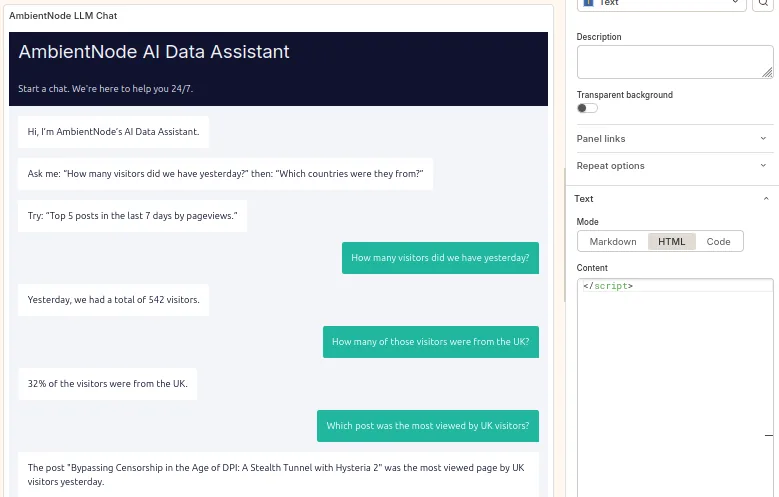
Now embed the n8n chat UI into Grafana. In your Grafana dashboard, add a new panel:
- Visualization: Text
- Text mode: HTML
Paste the snippet below, and replace the webhookUrl with your n8n chat webhook URL:
<div id="n8n-chat"></div>
<link href="https://cdn.jsdelivr.net/npm/@n8n/chat/dist/style.css" rel="stylesheet" />

<script type="module">
  import { createChat } from "https://cdn.jsdelivr.net/npm/@n8n/chat/dist/chat.bundle.es.js";

  createChat({
    webhookUrl: "https://n8n.YOURDOMAIN.TLD/webhook/YOUR-WEBHOOK-ID/chat",
    mode: "fullscreen",
    showWelcomeScreen: false,
    initialMessages: [
      "Hi, I’m AmbientNode’s AI Data Assistant.",
      "Ask me: “How many visitors did we have yesterday?” then: “Which countries were they from?”",
      "Try: “Top 5 posts in the last 7 days by pageviews.”"
    ],
    i18n: {
      en: {
        title: "AmbientNode AI Data Assistant",
        inputPlaceholder: "Ask about visitors, pageviews, sessions, countries, posts…"
      }
    }
  });
</script>
Depending on how strict your Grafana and reverse proxy headers are (CSP, script-src), you may need to adjust policy to allow the CDN resources. If this dashboard is internet-facing, treat that carefully.
You can now chat with your data from inside Grafana.
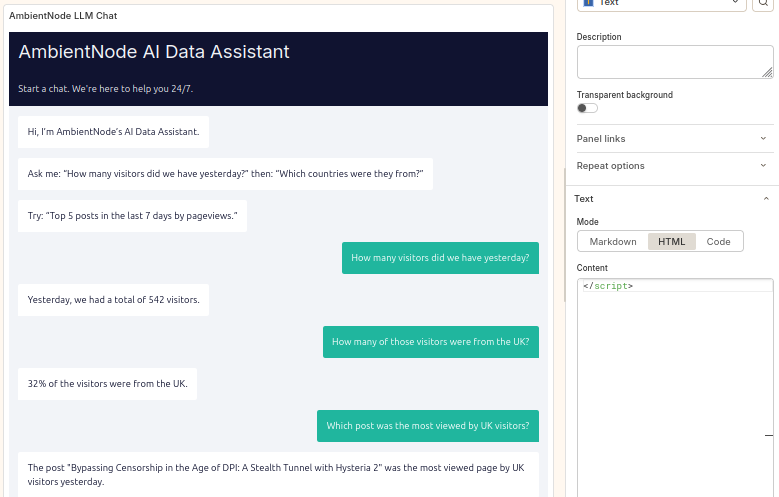
This is obviously a simple demo, but the pattern scales, once you have a large schema with multiple related tables, an LLM becomes a fast query assistant for investigation and one-off questions. You still keep dashboards for steady-state reporting, but you stop creating a new panel every time you want to answer a question once.
Quick note on Grafana's own AI features
Grafana does have official AI integrations, but they are aimed more at assisting users inside Grafana (like explaining panels, helping with query building, and centralizing LLM connectivity and governance) rather than embedding a user-facing chat widget into a dashboard that runs ad hoc SQL against your own database.
So the approach in this guide is a lightweight way to add an option to chat with your dataset directly next to your dashboards, using your own workflow logic and your own database safety boundaries.